Demo Projects
To help you get started quickly with Runtime MetaHuman Lip Sync, two ready-to-use demo projects are available. Both are built with Unreal Engine 5.6+, are Blueprint-only, and run cross-platform on Windows, Mac, Linux, iOS, Android, and Android-based platforms (including Meta Quest).
Available Demo Projects
- AI Conversational NPC / Interactive Avatar
- Basic Lip Sync Demo
A full AI conversational avatar workflow combining speech recognition, an AI chatbot (LLM), text-to-speech, and audio playback with real-time lip sync - all running together in a single project. Suitable for a wide range of use cases - including games, interactive kiosks, virtual production, museum installations, digital assistants, and training simulations.
Pipeline Overview
🎤 Microphone → Speech Recognition → 💬 LLM Chatbot → 🔊 Text-to-Speech → 👄 Lip Sync + Playback
When the LLM is set to Streaming mode, its output is split sentence-by-sentence and sent to TTS as each sentence completes, rather than waiting for the full response, to minimize latency.
TTS and lip sync follow the same principle: with Streaming mode enabled, audio is processed and animated in chunks as it arrives, rather than waiting for the full clip.
Videos
Quick Preview (~30 sec)
A short showcase of the demo in action.
Full Walkthrough
A detailed walkthrough covering setup, configuration, and the full conversational pipeline.
Downloads
Required & Optional Plugins
The demo project is modular - you only need the plugins for the providers you want to use.
| Plugin | Purpose | Required? |
|---|---|---|
| Runtime MetaHuman Lip Sync | Lip sync animation | ✅ Always |
| Runtime Audio Importer | Audio capture & processing | ✅ Always |
| Runtime Speech Recognizer | Offline speech recognition (whisper.cpp) | ✅ Always |
| Runtime AI Chatbot Integrator | External LLMs (OpenAI, Claude, DeepSeek, Gemini, Grok, Ollama) and/or External TTS (OpenAI, ElevenLabs) | 🔶 Optional |
| Runtime Local LLM | Local LLM inference via llama.cpp (Llama, Mistral, Gemma, etc, GGUF models) | 🔶 Optional |
| Runtime Text To Speech | Local TTS via Piper and Kokoro | 🔶 Optional |
While each plugin above is individually optional, you need at least one LLM provider and at least one TTS provider for the demo to work. Mix and match freely (e.g. local LLM + ElevenLabs TTS, or OpenAI LLM + local TTS).
Modular Architecture
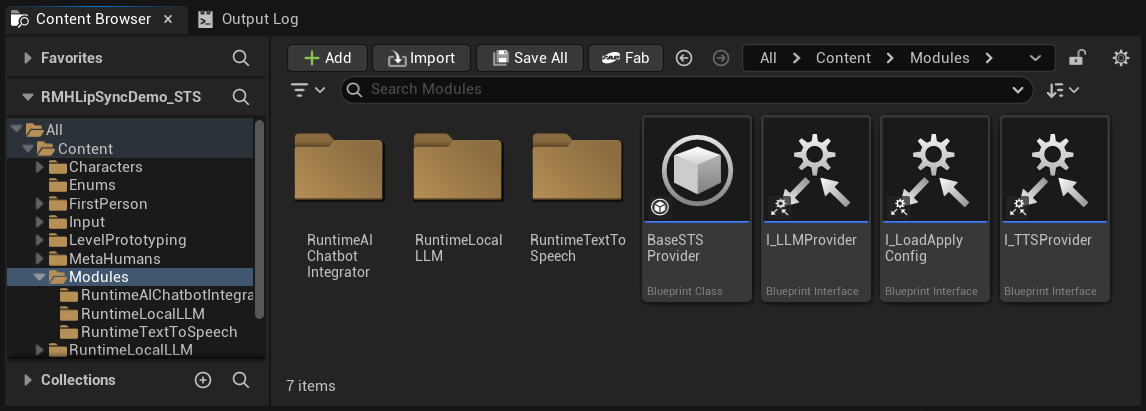
In the Content folder you'll find a Modules folder that contains three subfolders:
Content/
└── Modules/
    ├── RuntimeAIChatbotIntegrator/   ← External LLMs and/or external TTS
    ├── RuntimeLocalLLM/              ← Local LLM via llama.cpp
    └── RuntimeTextToSpeech/          ← Local TTS via Piper/Kokoro
If you didn't acquire one (or more) of the optional plugins, simply delete the corresponding folder(s). The demo project's base assets (game instance, widgets, etc.) do not reference these modules directly, so deleting them won't cause asset reference errors. The configuration UI will automatically hide any provider whose folder is missing.
This modularity applies only to LLM and TTS providers. Speech Recognition (Runtime Speech Recognizer) and Lip Sync (Runtime MetaHuman Lip Sync) are part of the base demo project and are always required.
On first launch, Unreal may ask whether to disable any missing optional plugins - click Yes. Make sure you've also deleted the corresponding Content/Modules/ folder (see above).
Bundled Extension Plugins
Silero VAD, WebRTC AEC3, and Standard Lip Sync extensions (click to expand)
The source version of the demo ships with three free extension plugins pre-bundled in its Plugins/ folder: RuntimeAudioImporterSileroVAD (neural VAD), RuntimeAudioImporterWebRTCAEC3 (echo cancellation), and RuntimeMetaHumanLipSync_Standard (Standard lip sync model).
The bundled binaries are pre-built for UE 5.6. For UE 5.7 / 5.8, either build them from source (see each extension's docs), or use pre-built binaries: UE 5.7 · UE 5.8. To install: delete the three existing folders from Plugins/, then extract the archive's contents into Plugins/ in their place.
All three are optional - if you don't need them, just delete their folders from Plugins/ before launching.
Demo Project Layout
The user interface shown below is built entirely with UMG (Unreal Motion Graphics) and is intended purely to demonstrate the pipeline - speech recognition → LLM → TTS → lip sync. You're free to restyle or replace it to match your project's visual design, control scheme, or platform (VR/AR, mobile, console, kiosk, etc.). If certain widgets aren't needed in your use case, you can also simply hide them (e.g. set their visibility to Collapsed or Hidden).
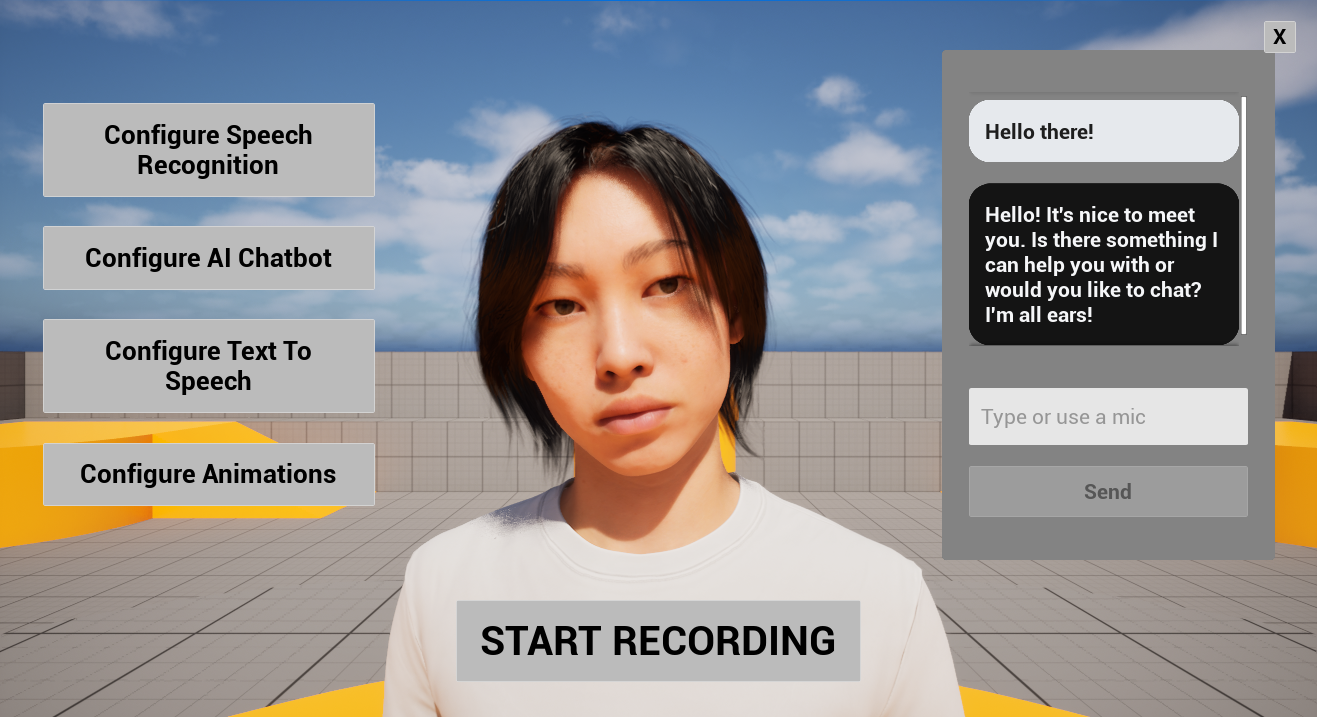
| Area | What's there |
|---|---|
| Center | The MetaHuman character. |
| Left side | Four configuration buttons (Speech Recognition, AI Chatbot, Text To Speech, Animations), described in detail below. |
| Center bottom | A Start Recording button. Click it to begin a voice conversation: your microphone is captured, transcribed, sent to the LLM, the response is synthesized via TTS, and played back with lip sync, fully hands-free. |
| Right center | A conversation history widget showing the full back-and-forth between you and the AI (both user and assistant messages). It also includes a text input field, so you can type messages directly without using speech recognition, useful for testing, for accessibility, or when a microphone isn't available. |
You can mix both input modes freely in the same session - speak some messages, type others.
If lip sync keeps drifting further behind audio the longer you test (not just a fixed delay), see Processing Chunk Size under Configure Animations below.
Configuration Buttons
The four configuration buttons on the left open dedicated panels for each part of the pipeline:
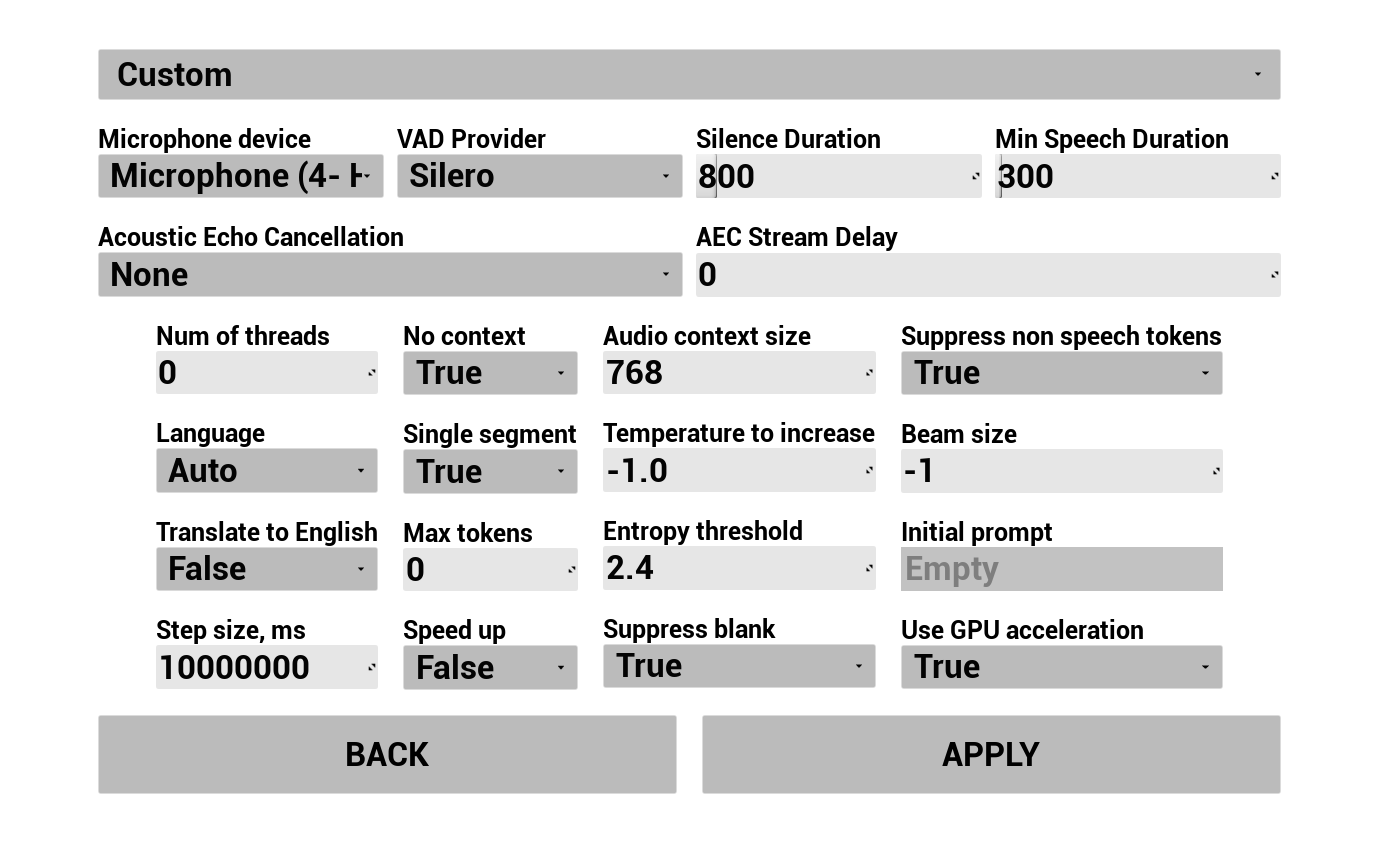
1. Configure Speech Recognition
Configure how the user's voice is captured and transcribed:
- Select language
- Adjust speech recognition parameters (Whisper model settings)
- Configure AEC (Acoustic Echo Cancellation)
- Configure VAD (Voice Activity Detection)
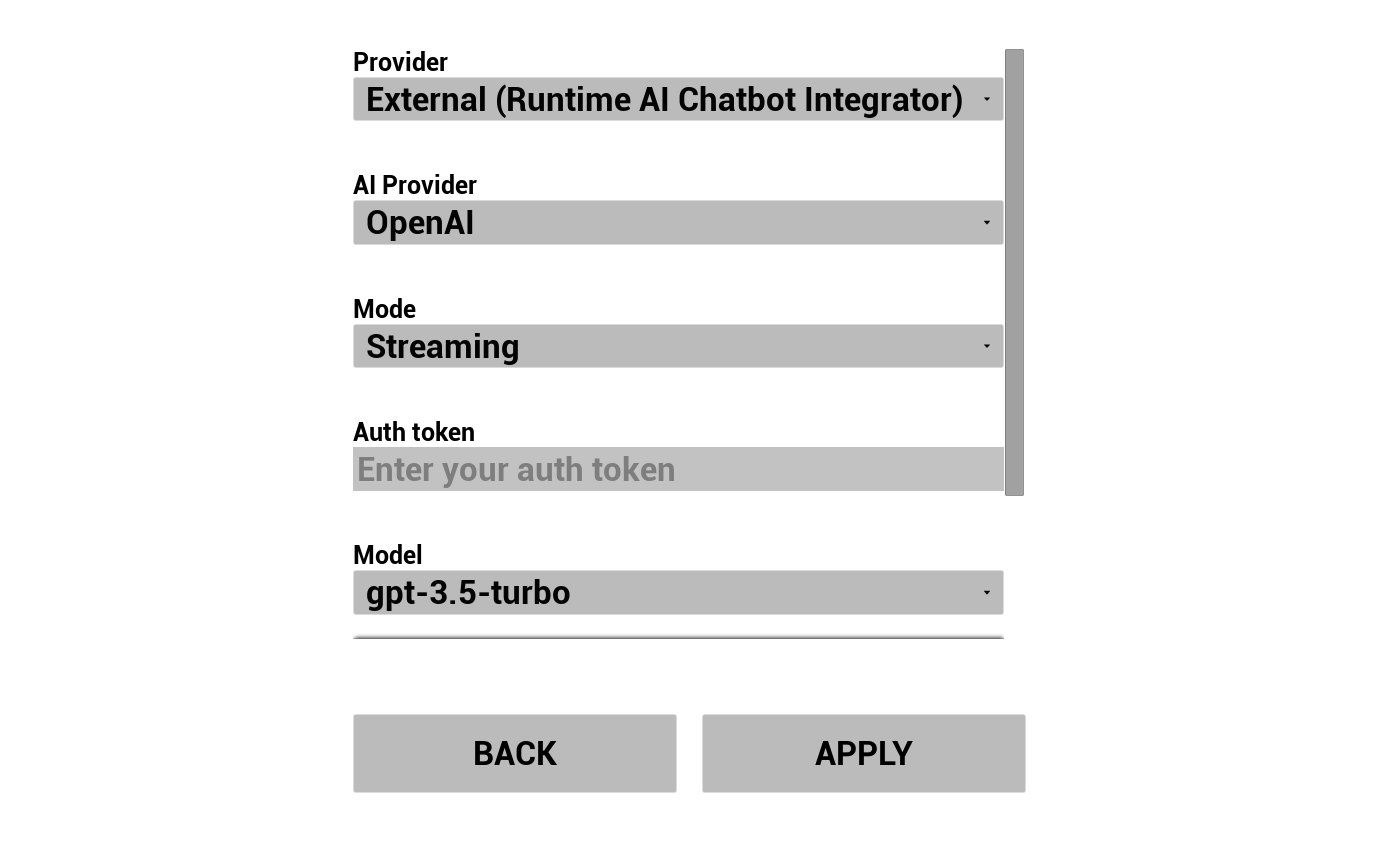
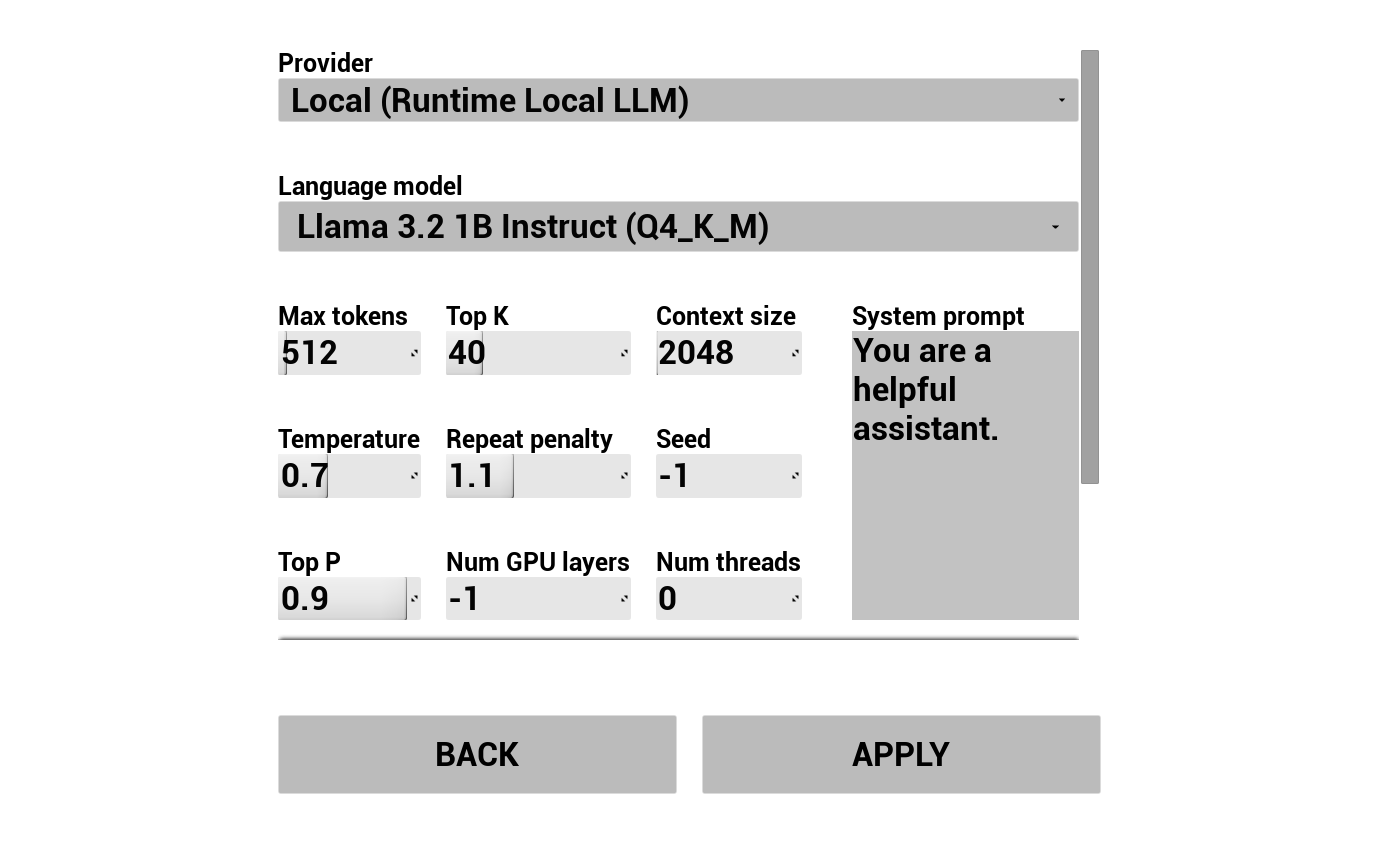
2. Configure AI Chatbot
Choose your LLM provider and configure it:
- Select provider (Runtime AI Chatbot Integrator or Runtime Local LLM)
- Select mode: Regular or Streaming (provider-dependent, Streaming enables sentence-by-sentence TTS handoff, see Pipeline Overview)
- For external providers: auth token, model name, etc.
- For local LLM: select a GGUF model, set context size, and other inference parameters. You can also download your own GGUF model at runtime directly from the demo (e.g. by URL), and use it immediately without rebuilding the project.
The provider combobox only shows providers whose plugin module folder is present in Content/Modules/.
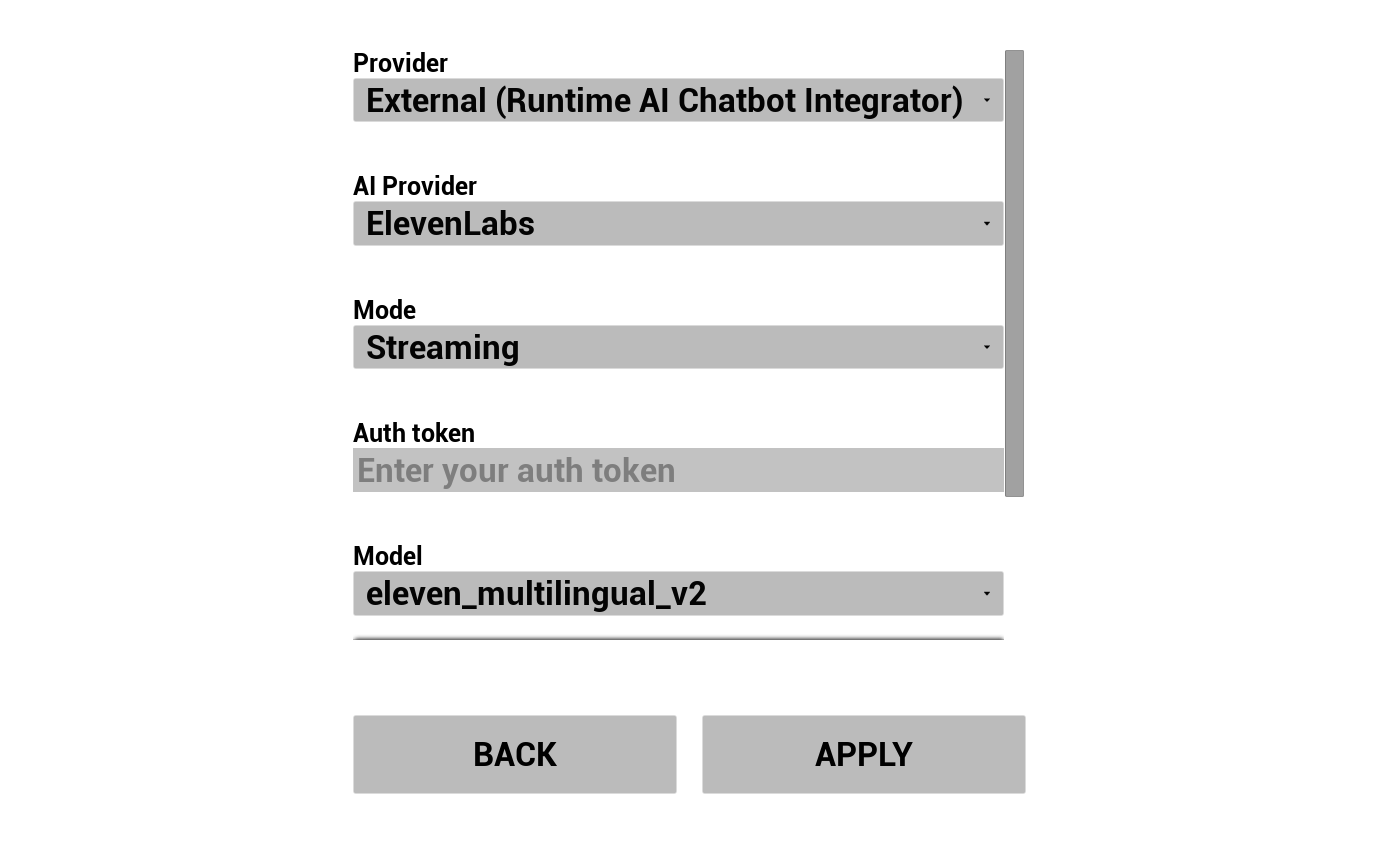
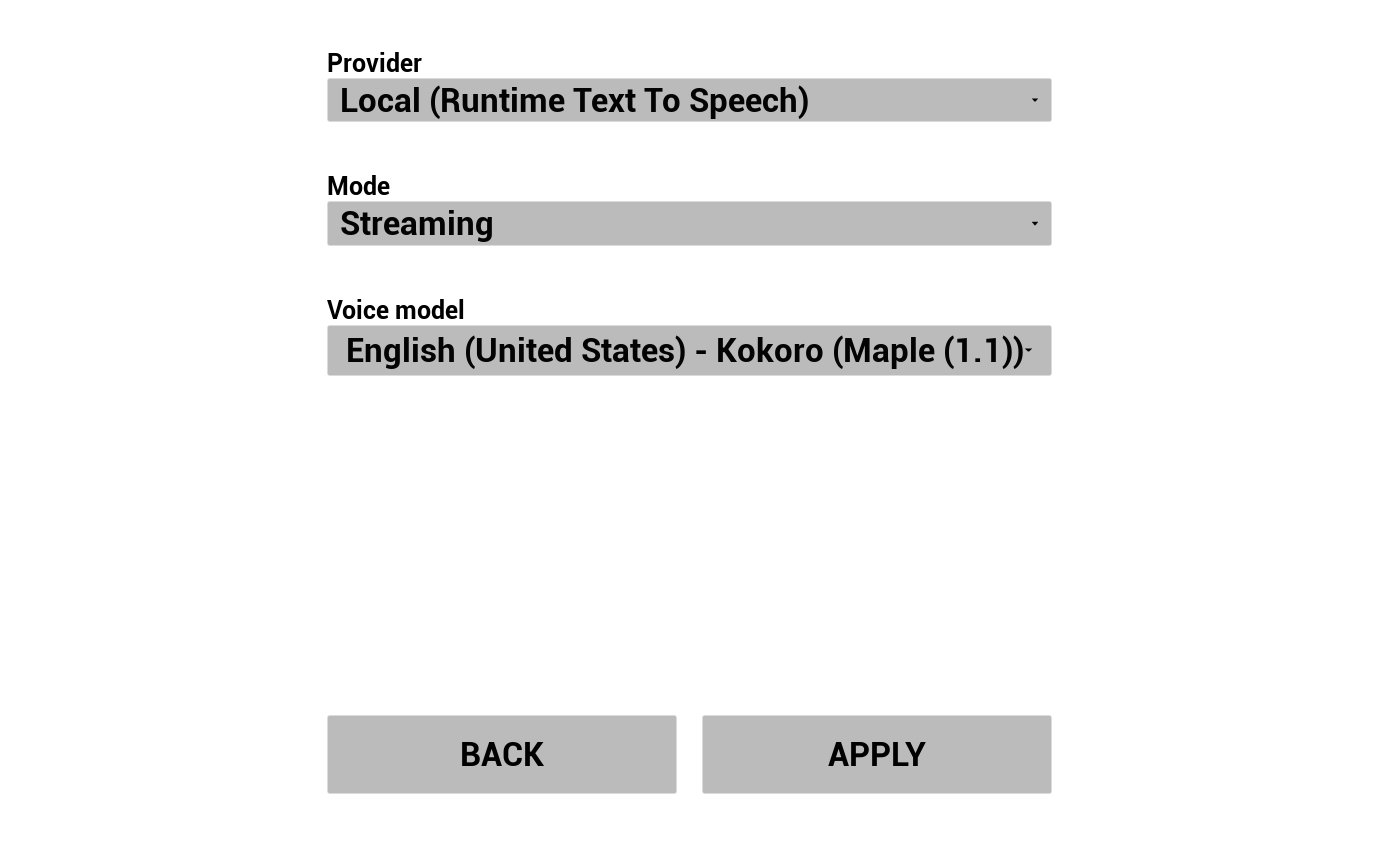
3. Configure Text To Speech
Choose your TTS provider and configure voices/models:
- Select provider (Runtime AI Chatbot Integrator for OpenAI/ElevenLabs, or Runtime Text To Speech for local Piper/Kokoro)
- Select mode: Regular or Streaming (controls whether audio is returned all at once or as it's synthesized)
- Select voice/model
- Adjust provider-specific parameters
4. Configure Animations
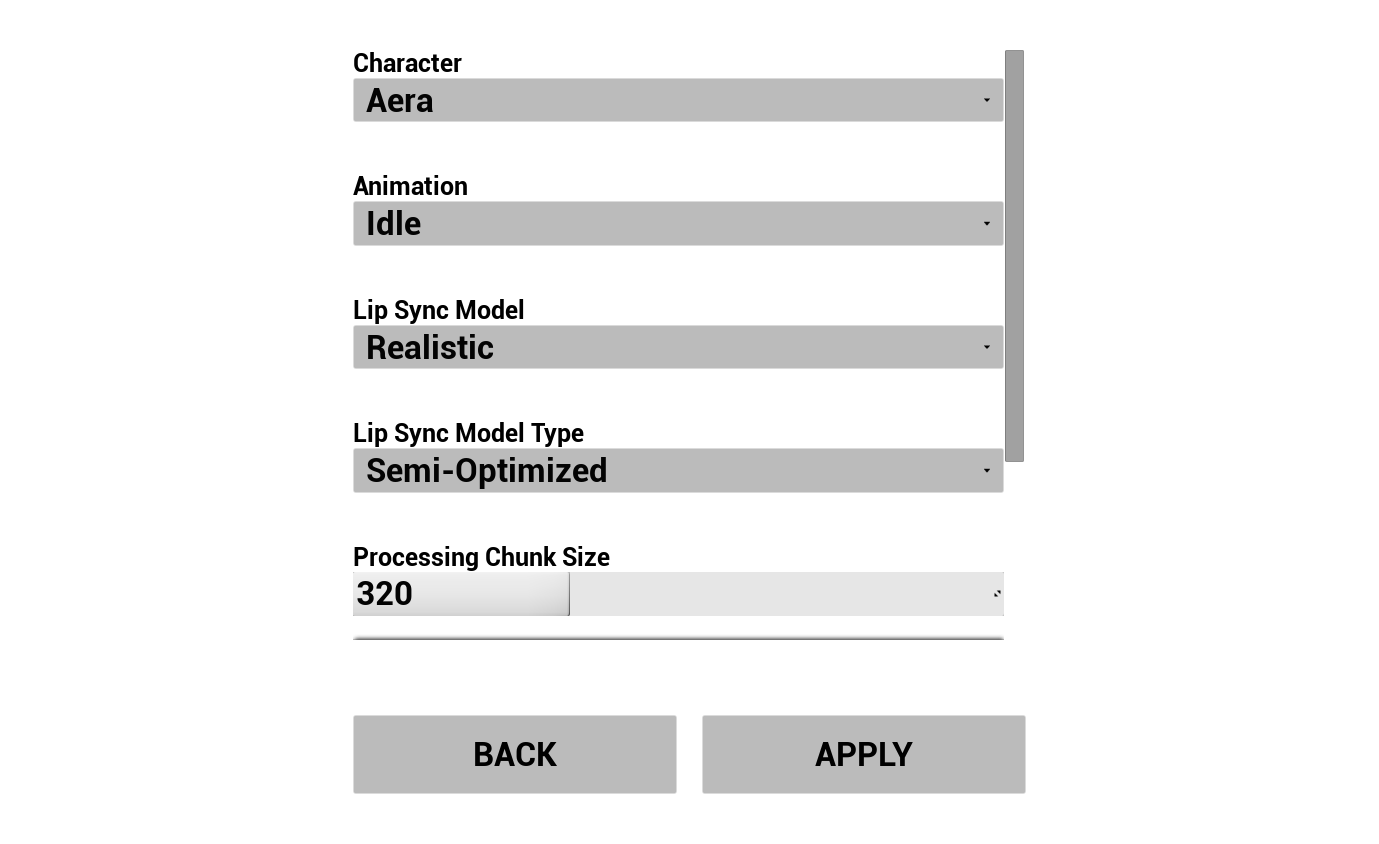
Control the visuals of your AI avatar:
- Choose between 3 pre-downloaded MetaHuman characters (Aera, Ada, Orlando)
- Select lip sync model (Standard or Realistic)
- Select lip sync model type - Highly Optimized, Semi-Optimized, or Original (see Model Type)
- Adjust Processing Chunk Size - controls how often lip sync inference runs (see Processing Chunk Size)
- If lip sync drifts further behind audio over time under CPU load, increase this to 480 or 640
- Select an idle animation to play on the MetaHuman during conversation
Pre-Configuring the Demo in the Editor
When working with the source version, you can pre-fill defaults directly in the editor so values don't need to be re-entered every run:
| What | Where |
|---|---|
| General settings (lip sync model, idle animation, character class, speech recognition, etc) | Content/LipSyncSTSGameInstance |
| External LLM / External TTS settings (Runtime AI Chatbot Integrator) | Content/Modules/RuntimeAIChatbotIntegrator/RuntimeAIChatbotIntegrator_Provider |
| Local LLM settings (Runtime Local LLM) | Content/Modules/RuntimeLocalLLM/RuntimeLocalLLM_Provider |
| Local TTS settings (Runtime Text To Speech) | Content/Modules/RuntimeTextToSpeech/RuntimeTextToSpeech_Provider |
Cross-Platform Notes
All plugins used by the demo support Windows, Mac, Linux, iOS, Android, and Android-based platforms (including Meta Quest), so the demo project works on all of these as well. This makes it suitable for deployment across a wide variety of environments - from games and desktop kiosks to mobile apps, standalone VR headsets, and on-set virtual production setups.
For weaker devices (mobile, standalone VR), you may want to:
- Use the Standard lip sync model instead of Realistic - see the Model comparison
- Switch to Highly Optimized model type
- Increase Processing Chunk Size to reduce CPU load
- Pick smaller LLM / TTS models
See Platform-specific Configuration for additional setup steps on Android, iOS, Mac, and Linux.
Pixel Streaming Support
Deploying the demo on Pixel Streaming (click to expand)
The AI Conversational demo project also works in a Pixel Streaming environment, allowing you to stream the MetaHuman avatar to a remote client (e.g. a web browser) while capturing the user's microphone audio from the client side. Only a single change to the demo is required.
1. Install the Pixel Streaming extension for Runtime Audio Importer
The Runtime Audio Importer plugin provides a free extension plugin that enables capturing audio from a Pixel Streaming client. Depending on which Pixel Streaming infrastructure version you're using, install one of:
- Pixel Streaming extension (for the original Pixel Streaming plugin), or
- Pixel Streaming 2 extension (for the newer Pixel Streaming 2 plugin)
Download links and installation steps are available here: Pixel Streaming Audio Capture - Extension Plugin Installation.
2. Swap the capturable sound wave node in LipSyncSTSGameInstance
After the extension plugin is installed:
- In the Content Browser, navigate to
/All/Gameand open theLipSyncSTSGameInstanceasset. - Switch to the Event Graph.
- Locate Event Init and follow the execution flow until you find the pair of nodes:
Create Capturable Sound Wave→Set Capturable Sound Wave. - Replace the
Create Capturable Sound Wavecall with eitherCreate Pixel Streaming Capturable Sound WaveorCreate Pixel Streaming 2 Capturable Sound Wave, depending on which Pixel Streaming infrastructure version you're targeting. - Connect its output to the same
Set Capturable Sound Wavenode.
After this, the project is ready to be deployed on Pixel Streaming - speech recognition, LLM, TTS, and lip sync will all work as before, but with audio captured from the remote client instead of a local microphone.
Bringing Your Own Character
The demo project ships with three sample MetaHuman characters (Aera, Ada, Orlando), but you can import your own MetaHuman and use it in the demo.
📺 Video tutorial: Adding a Custom MetaHuman Character to the Demo Project
The Runtime MetaHuman Lip Sync plugin itself supports many other character systems beyond MetaHumans (ARKit-based characters, Daz Genesis 8/9, Reallusion CC3/CC4, Mixamo, ReadyPlayerMe, etc - see the Custom Character Setup Guide). Whether you're building a game NPC, a virtual presenter, a kiosk attendant, or a digital human for virtual production, the plugin adapts to your character pipeline.
A focused demo project showcasing the lip sync feature across a range of audio sources. Lip sync itself works with any streaming audio input, in any language, and processes it chunk by chunk in real time.
Featured Video
Downloads
What's Included
This demo showcases the basic lip sync workflows:
- Microphone (real-time) - live lip sync as you speak
- Microphone (playback) - record first, then play back with lip sync
- Text-to-Speech (local) - lip sync driven by a local language model
- Text-to-Speech (external) - lip sync driven by OpenAI or ElevenLabs voices (Runtime AI Chatbot Integrator also supports Google Cloud TTS and Azure TTS, and can be customized further - lip sync itself works with any streaming audio source)
- Audio file - lip sync generated from an imported audio file
Required & Optional Plugins
| Plugin | Purpose | Required? |
|---|---|---|
| Runtime MetaHuman Lip Sync | Lip sync animation | ✅ Required |
| Runtime Audio Importer | Audio import & capture | ✅ Required |
| Runtime Text To Speech | Local TTS for the TTS demo scene | 🔶 Optional |
| Runtime AI Chatbot Integrator | External TTS providers (OpenAI, ElevenLabs) | 🔶 Optional |
Bundled Extension Plugins
Standard Lip Sync extension (click to expand)
The source version ships with the RuntimeMetaHumanLipSync_Standard extension pre-bundled in Plugins/, which adds support for the Standard lip sync model. Binaries are pre-built for UE 5.6. For UE 5.7 / 5.8 use the pre-built archives (UE 5.7 · UE 5.8) or build from source - to install, delete the existing folder from Plugins/ and extract the archive's contents in its place. Delete the folder without replacing it if you don't need the Standard model.
Need Help?
If you run into any issues setting up or running the demo projects, feel free to reach out:
For custom development requests (e.g. extending the demo with your own logic, adapting it for a specific platform or character pipeline), contact [email protected].